How to set up Instagram comment-to-DM automation
When someone comments on your post or reel, Augst AI sends them a DM automatically. This walks through the whole setup — picking the post, choosing the trigger, building the reply, and what to check before you put money behind the post.
What comment-to-DM automation actually does
Someone comments on your reel. Instead of you seeing it hours later, a direct message lands in their inbox within a second — with the price, the link, the guide, whatever you promised in the caption. Optionally, a public reply is posted on the comment as well.
It is the most reliable way to turn engagement into conversations, because it catches people at the exact moment they raised their hand. The usual jobs it does:
- Sending a price list, booking link or discount code
- Delivering a free resource promised in the caption
- Qualifying a lead before a human picks it up
- Moving a public thread into a private conversation
Before you start
- An Instagram professional account — Business or Creator
- That account connected to Augst AI (free plan works)
- A post or reel already published, or one you are about to publish
Part 1 — Create the automation
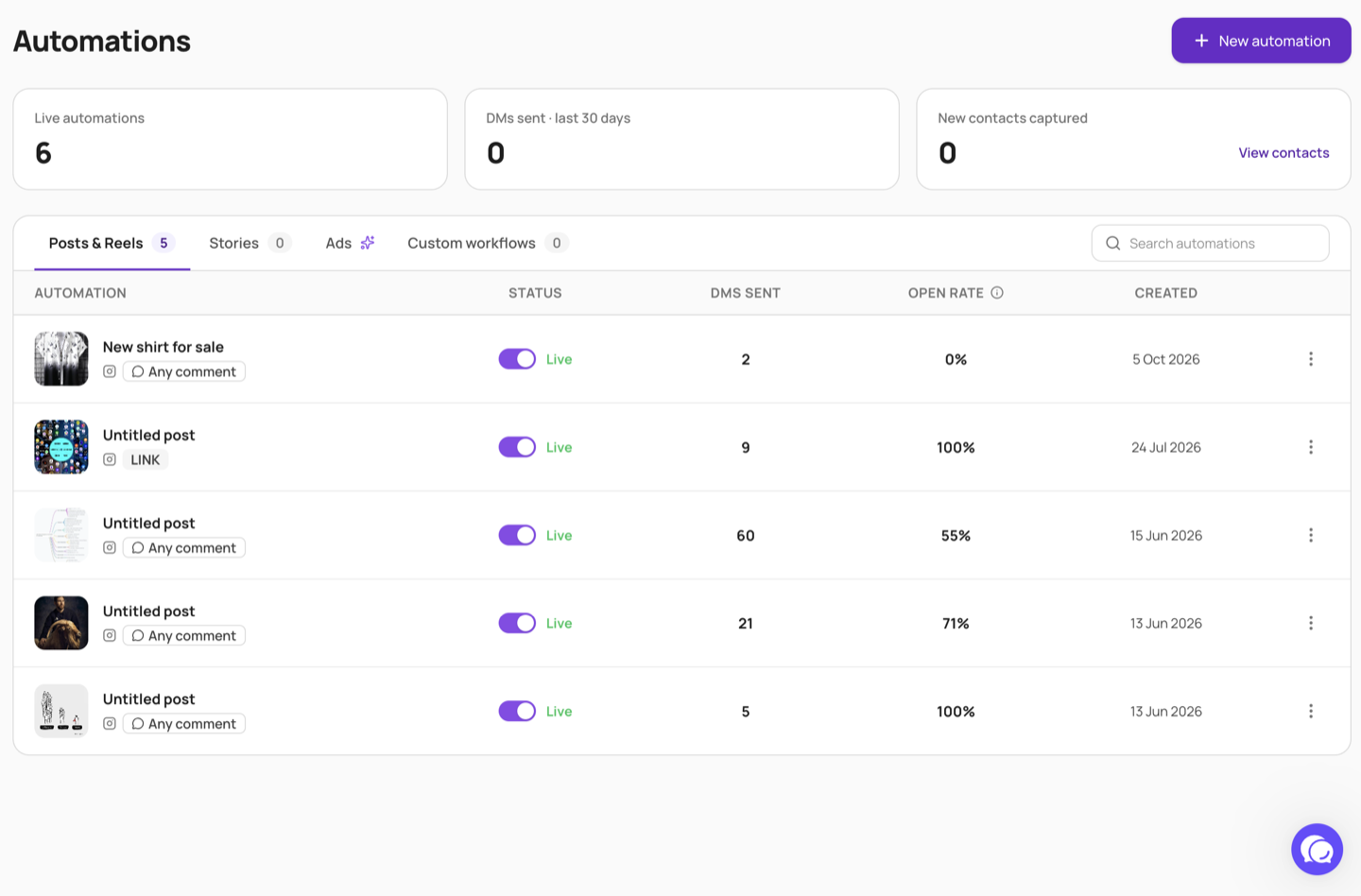
Click New automation
Top right of the Automations screen in your Augst AI dashboard.
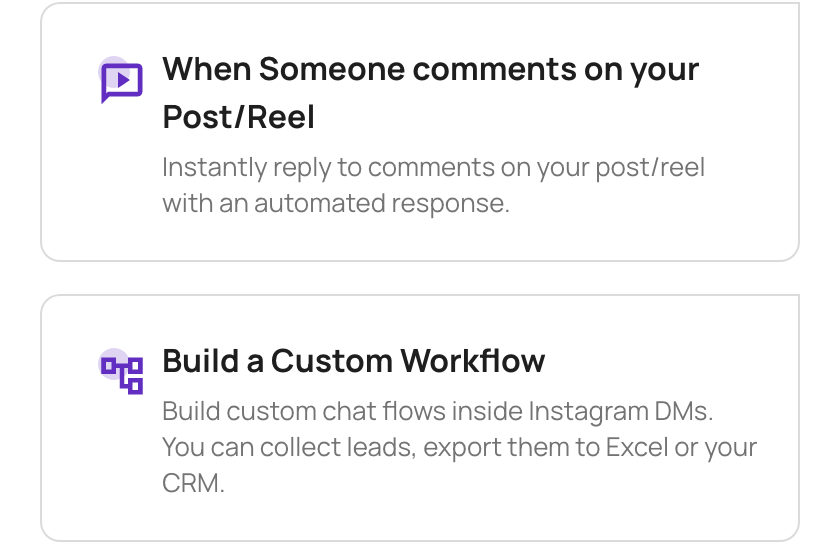
Choose "When someone comments on your Post/Reel"
This is the trigger. Picking it takes you to the Create Automation screen.
That screen is split. The left side is a live preview of the message as the recipient will see it. The right side is where you configure everything. Changes show up in the preview as you make them, so you are never guessing at the final result.
Part 2 — Configure it
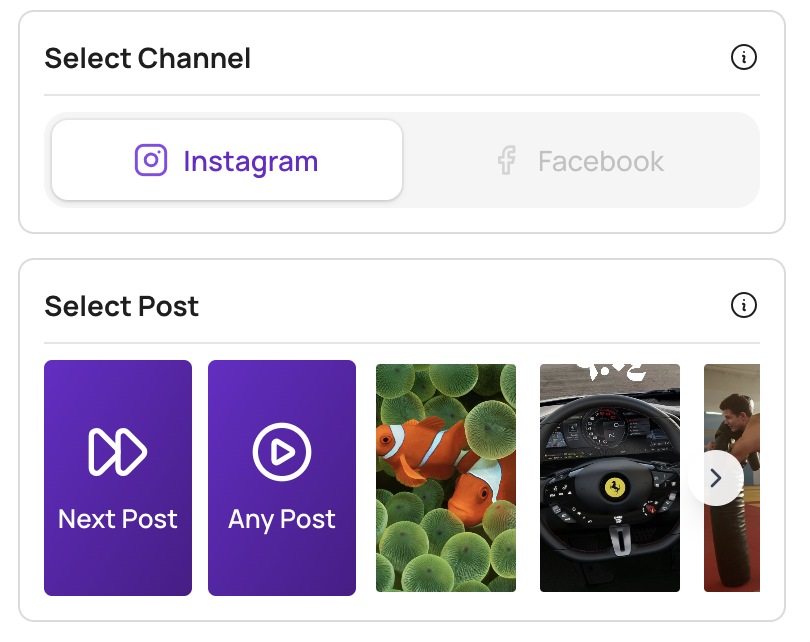
Select the post
Pick a published post or reel, and only comments on it trigger the automation. Two other options sit at the front of the list: Next Post attaches it to the next thing you publish, which is what you want when the caption is written but the post is not up yet, and Any Post makes it a catch-all across your posts.
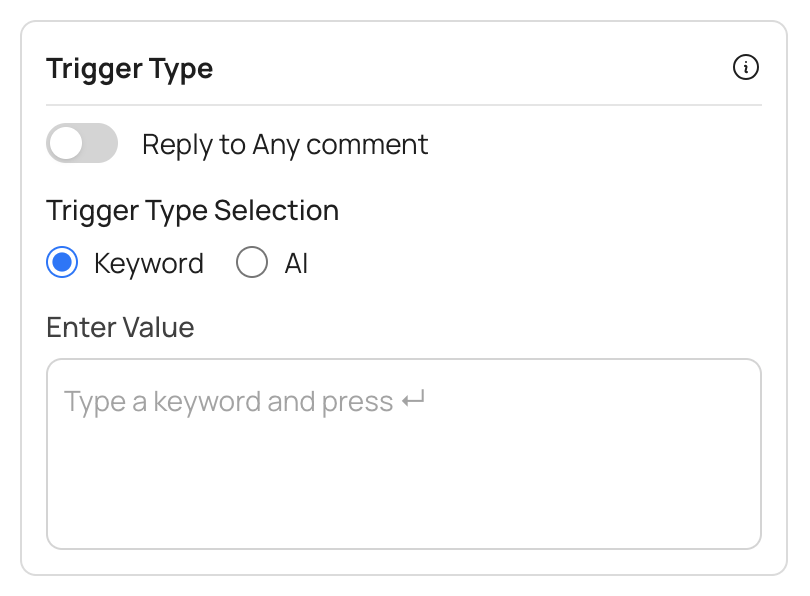
Select the trigger type
Keyword-based, or AI-based — the next section covers which to pick. There is also a Reply to Any comment toggle above it, which skips matching altogether and replies to every comment on the post.
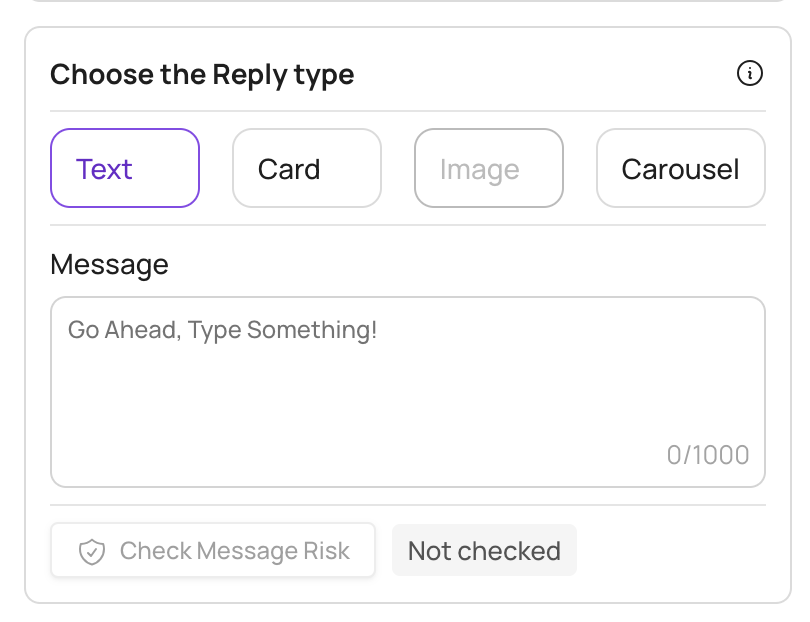
Choose the reply type
Text for a simple message, Card for structured content, Image, or Carousel for several swipeable cards. The preview shows each one. Under the message box is Check Message Risk, which grades what you wrote before you save it.
Decide whether to reply to the comment
Enable it and a public reply is posted on the comment as well as the DM. Disable it and the conversation moves straight to private.
Save
The automation is live from that moment and runs in the background.
Set up your first automation free
Comment-to-DM is on the free plan. No card needed, and it runs on the official Instagram API.
Start freeKeyword trigger or AI trigger?
This is the one choice that changes how the automation behaves day to day, and the right answer depends on your caption.
| Keyword | AI | |
|---|---|---|
| Fires when | The comment contains the exact word you chose | The comment means what you are watching for |
| Best for | "Comment PRICE and I'll send it" — you control the word | Open questions you can't predict: "how much??", "cost?", "price pls" |
| Misses | Anyone who phrases it differently | Rarely, but it is a judgement rather than a match |
If your caption tells people exactly what to comment, use a keyword. If you are running a post that attracts genuine questions, use AI — listing every spelling of "how much" by hand is a losing game. You can read more on the comment-to-DM feature page.
How to auto-send a DM when someone comments on Instagram
That is the whole setup. Once saved, the auto reply runs on its own every time someone comments:
- Someone comments on the selected post
- The trigger condition is met — keyword matched, or AI judged it relevant
- The DM is sent automatically
- A public comment reply is posted, if you enabled it
Every person who comes through becomes a contact, so the conversation has a history attached the next time they message. That is what the Unibox and CRM are for.
Before you promote the post
Automation failures are rarely about the automation. They are about the message. A few things worth doing:
- Test it yourself first. Comment on your own post from another account and watch the DM arrive.
- Keep the first DM short. One idea, one link, one question. Long opening messages get ignored and ignored messages are a negative signal.
- Check the message for risk. Income claims, shortened links and giveaway wording are what attract action blocks — and at automation volume, one risky message is sent hundreds of times. Use Check Message Risk under the message box, or the same Instagram ban risk checker on the web if you are drafting outside the app.
- Watch the first hour. If replies come back that the automation can't handle, take over the conversation yourself — it steps aside and keeps the history.
Instagram comment-to-DM not working? Start here
When an automation stays silent, it is almost always one of these — in rough order of how often it is the cause.
- You tested from the connected account. A comment from the same Instagram account the automation runs on is skipped on purpose, so you never DM yourself. Test from a second account.
- Messaging access is off in Instagram. On the Instagram app: Settings and privacy → Messages and story replies → Connected tools, and turn on Allow access to messages. Without it, Meta delivers no comment events at all and nothing fires.
- The account is personal. The Instagram Messaging API only works on a Business or Creator account. Switching is free and takes a minute in Instagram settings.
- The keyword doesn't match. Keyword triggers look for your word in the comment. "Price?" works, "pricing" does not. If people are phrasing it their own way, switch that automation to the AI trigger.
- The automation is on a different post. Each automation is tied to one post or reel. A new post needs its own.
- The comment already got a reply. Meta allows one private reply per comment, so a comment that was already answered will not be sent a second DM.
- The comment is too old. Meta refuses private replies to comments past a certain age, which is why automations added to an old post may not fire on the comments already sitting on it. New comments still work.
If none of those explain it, the conversation view shows what was received and what was sent for each comment, which usually makes the gap obvious.
Where to go next
Put this on your next post
Connect your Instagram account and build the automation in a few minutes. Free plan, no card needed.
Start free- Comment-to-DM automation — how the feature works in full
- Build a DM chatbot for the questions that come after the first reply
- Unibox & CRM — every conversation and contact in one place
- Instagram ban risk checker — paste your DM before you send it at volume
- Pricing — comment-to-DM is on the free plan
FAQ